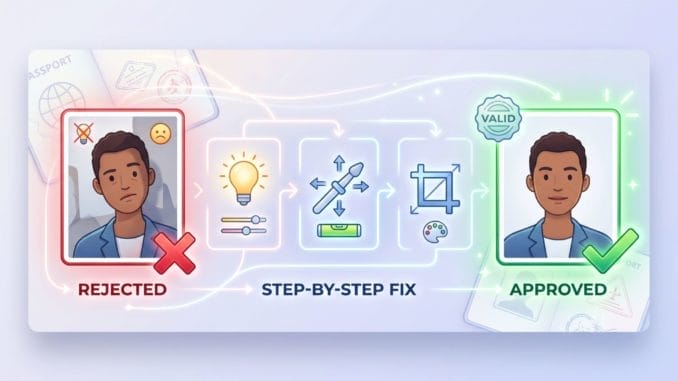
A passport photo rejection is more common than you think. Photo non-compliance is one of the leading reasons passport applications get delayed every year. The good news? It's almost always fixable, and in most cases, you won't pay a single extra dollar to resubmit.
This guide walks you through exactly what to do after a rejection: how to read your denial notice, how to take a better photo, and how to get your application back on track. Whether you're renewing an old passport or applying for the first time, these steps will help ensure your first attempt at a compliant photo is also your last.
What You'll Need
Get everything together before you begin. Having it all set up means you're ready to go once you pick up the camera.
- Your rejection notice — the letter or email from the U.S. Department of State or your passport acceptance facility. You need this to see exactly what went wrong.
- A smartphone or digital camera — most modern smartphones take photos that are more than sharp enough, as long as you use them correctly.
- A plain white background — a white wall, a large sheet of white paper, or a white foam poster board from any dollar store or office supply shop.
- Good lighting — natural light from a window works great, or a lamp placed in front of you (never behind).
- A passport photo tool — a service or app that automatically crops, resizes, and checks your photo against official requirements.
- Access to a printer or pharmacy — if you're mailing in a printed photo, you'll need it printed on matte or glossy photo-quality paper. Walgreens, CVS, and FedEx Office all offer this.
- Your original application documents — to submit alongside your new photo.
You don't need expensive equipment. A clear setup, decent light, and the right tool to process the photo are all it takes.
Step 1 — Read Your Rejection Notice Carefully
Don't retake your photo right away. Before you touch a camera, read your rejection notice from start to finish.
When your passport photo doesn't meet the required standards, the U.S. Department of State or your passport acceptance facility will send you an official notice — by mail or email — that your application is on hold. The notice will include the reason your photo was flagged, even if the language feels vague. Common phrases include “photo does not meet requirements,” “incorrect background,” or “head size out of range.” Look for any specific language that points to what went wrong, and write it down. That detail is your roadmap to fixing the problem.
While you're at it, check the date on the notice. You have 90 days from the date of rejection to submit a new, compliant photo. If you miss that window, your entire application will be cancelled and you'll need to start over — including paying all applicable fees again.
⚠️ Important: Don't set the notice aside and assume you'll deal with it later. The 90-day deadline moves faster than it feels, especially if you have travel plans on the horizon. Act within the first week if at all possible.
Once you know the exact reason for the rejection, you're ready to fix it. That's what the next step covers.

Step 2 — Identify the Exact Reason Your Photo Was Rejected
Rejection notices can be frustratingly vague. If yours didn't spell out the problem clearly, use this self-check list to diagnose the issue yourself. Hold your rejected photo up and work through each category below.
Common Rejection Reasons at a Glance
Background
- Is the background pure white or off-white, with no patterns, textures, or gradients?
- Are there any shadows falling on the background behind you?
Lighting
- Is your face evenly lit, with no shadows on either side of your face or under your chin?
- Does the photo look overexposed (washed out) or underexposed (too dark)?
Head size and positioning
- Does your head measure between 1 and 1⅜ inches from chin to crown within the frame?
- Is your face centered, taking up roughly 50–70% of the photo?
- Are you looking directly at the camera with your head straight — not tilted or turned?
Expression and eyes
- Is your expression neutral? No wide smile, no frown, no raised eyebrows?
- Are both eyes fully open and clearly visible?
Glasses, hats, and accessories
- Are you wearing glasses? These have not been permitted in U.S. passport photos since 2016.
- Are you wearing a hat or head covering for a non-religious or non-medical reason?
Photo quality and alterations
- Is the photo sharp and in focus — not blurry, grainy, or pixelated?
- Did your phone's portrait mode, beauty filter, or skin-smoothing feature alter the image without you realizing it?
- Was any editing applied — exposure adjustments, background removal, blemish correction — that the system may have flagged as digital alteration?
File specifications (for digital submissions)
- Is the file in JPEG or HEIF format?
- Is the file size under 240 KB?
- Is the image a perfect square (1:1 aspect ratio)?
Work through each item honestly. Once you've identified the problem — or problems — you know exactly what to fix before you retake the photo. In most cases, it comes down to background, lighting, or a phone camera setting you didn't know was on.
Step 3 — Set Up Your Background and Lighting
A poor background or uneven lighting accounts for a large share of passport photo rejections — and it's entirely preventable with a simple home setup. You don't need a studio. You need a flat white surface and light coming from the right direction.
Setting up your background
The ideal option is a plain white wall with nothing on it — no artwork, no light switches, no textured paint. If your walls are off-white or cream, that can still work, but pure white is always the safer choice. If you don't have a suitable wall, pick up a large white foam poster board from a dollar store or office supply shop. Lean it against a wall or a piece of furniture behind you, making sure it's large enough that none of the edges show in the frame.
The most important rule: stand or sit at least two to three feet away from your background. The closer you are to it, the more likely your body will cast a shadow onto it — and any shadow on the background is grounds for rejection.
Setting up your lighting
Natural light is your best friend here. Position yourself facing a window so the light falls evenly across your face from the front. Avoid sitting with a window behind you, which will silhouette your face and produce a dark, uneven image.
If natural light isn't available, place a lamp or two directly in front of you at roughly face height. The goal is even, flat light with no shadows on either side of your face or under your chin.
If you'd rather skip the manual setup entirely, PhotoGov is a straightforward option — you can check it here. Upload a photo taken on your phone and the tool handles the background, cropping, and resizing to meet U.S. passport photo requirements automatically.
💡 Pro Tip: Before you take a single photo, go into your phone's camera settings and turn off portrait mode, beauty mode, and any skin-smoothing or AI enhancement features. Even subtle adjustments can trigger a digital alteration rejection, even if you never touched the image yourself.
Once your background is clean and your lighting is even, you're ready to take the photo.

Step 4 — Take a Compliant New Photo
With your background set and your lighting sorted, it's time to take the photo itself. This is where most people rush — and where a second rejection happens. Take your time and check each requirement before you press the shutter.
Camera position and distance
Place your phone or camera at eye level, not angled up or down. Hold it or prop it approximately four to five feet away from your face. This distance gives the frame enough room to capture your head and the top of your shoulders — both of which must be visible in the final photo. Avoid taking a selfie if you can; it's much harder to control the framing and distance when you're holding the camera yourself. Ask someone else to take the shot, or use a tripod and a self-timer.
Head position and framing
Look directly into the lens — not at your own image on the screen. Keep your head straight, with no tilt to either side and no turn left or right. Your face should be centered in the frame, with a small amount of space between the top of your head and the upper edge of the photo.
According to the U.S. State Department's official passport photo requirements, your finished photo must be 2×2 inches, with a plain white or off-white background, and your head must measure between 1 and 1⅜ inches from the bottom of your chin to the top of your head. Your face should occupy roughly 50–70% of the total frame. These are the non-negotiable standards set by travel.state.gov, and every compliant photo must meet them.
Expression and appearance
Keep your expression neutral — mouth closed, no smile, no raised eyebrows, no squinting. Both eyes should be fully open and looking straight at the camera. Remove any glasses, hats, or head coverings that aren't worn for religious or medical reasons. Wear everyday clothing in a plain color, and avoid anything that looks like a uniform.
Take more than one shot
Don't stop at the first photo that looks acceptable. Take eight to ten shots and review them carefully on a larger screen if possible. Look for focus, even lighting, head position, and a natural, relaxed expression. Choose the sharpest, most evenly lit image before moving on to the next step.
💡 Pro Tip: After taking your photos, zoom in on your eyes and the background in each shot before choosing one. Soft focus and faint shadows are easy to miss on a small phone screen — but they're exactly what automated review systems are trained to catch.
Step 5 — Crop, Resize, and Check the Specs
Taking a good photo is only half the job. Before you submit anything, your image needs to meet a precise set of technical specifications. This is the step where a lot of DIY attempts fall apart — not because the photo looks bad, but because the dimensions, file size, or aspect ratio are slightly off.
Get the dimensions right
A U.S. passport photo must be exactly 2×2 inches (51×51 mm) — a perfect square. The image cannot be rectangular, even slightly. Within that square, your head must measure between 1 and 1⅜ inches from chin to crown, and your face should be centered with a small amount of empty space at the top and on both sides.
Trying to crop this manually in your phone's photo editor is possible, but it's easy to get the head sizing wrong. A dedicated passport photo tool takes the guesswork out of it — it detects your face automatically and positions it correctly within the frame to meet the State Department's proportional requirements.
Check the file specifications
If you're submitting your photo digitally — for example, through the U.S. online passport renewal portal — your file must meet these additional requirements:
- Format: JPEG or HEIF
- File size: 240 KB or less
- Aspect ratio: 1:1 (perfect square)
- Resolution: Minimum 600×600 pixels, with enough detail for clear facial recognition
Most passport photo tools will compress and export your image to meet these specs automatically. If you're doing it manually, use a free image compression tool online to reduce the file size without degrading quality below an acceptable threshold.
Do a final compliance check
Before you move on, run through this quick checklist one more time:
- Background is plain white with no shadows
- Face is centered and occupies 50–70% of the frame
- Head height falls within the 1–1⅜ inch range
- Both eyes are open, visible, and in focus
- No glasses, hats, or non-religious head coverings
- No filters, smoothing, or visible digital alterations
- File is JPEG or HEIF, square, and under 240 KB
If every item checks out, your photo is ready to print or submit. If anything feels uncertain, retake the photo rather than hoping it passes — a second rejection means another round of waiting.
⚠️ Important: Do not run your photo through a standard photo editor to adjust brightness or contrast before submitting. Even minor exposure corrections can be flagged as digital alteration by the automated review system. If the lighting isn't right, go back and retake the photo in better conditions.
Step 6 — Print or Export Your Photo Correctly
You have a compliant, correctly sized photo. Now you need to get it into the format your application actually requires — either a physical print or a digital file. Getting this final step wrong is surprisingly common, and it's entirely avoidable.
If you're submitting a printed photo
A U.S. passport photo print must be produced on matte or glossy photo-quality paper. This is not negotiable. Printing on standard home printer paper — even if the image itself is perfect — will result in an automatic rejection based on paper quality alone.
Your best options for printing are:
- Walgreens — accepts digital uploads for same-day passport photo prints
- CVS Photo — similar same-day service, widely available
- FedEx Office — good for higher-volume or last-minute needs
- USPS locations — some post offices offer passport photo services on site
When you send your file to be printed, make sure it is exported at 300 DPI (dots per inch). This is the minimum resolution for a print that will hold up to scrutiny. Anything lower risks a grainy or pixelated result, which is its own grounds for rejection. Do not print more than one photo per sheet unless your print service formats them correctly — improperly tiled prints are rejected.
⚠️ Important: Do not print on regular home printer paper. Even a sharp, perfectly sized image printed on the wrong paper will be rejected on paper quality alone. The small cost of a pharmacy print — usually under two dollars — is well worth it.
If you're submitting a digital photo
For online submissions, such as the U.S. passport online renewal portal, confirm the following before you upload:
- File format is JPEG or HEIF (not PNG, TIFF, or any other format)
- File size is 240 KB or less
- Dimensions are a perfect square at minimum 600×600 pixels
- The image has not been edited, filtered, or compressed beyond what your passport photo tool already applied
Upload the file exactly as exported from your passport photo tool. Do not open it in another app, apply any adjustments, and re-save it — each additional save cycle can introduce compression artifacts that the automated system may flag.
Once your photo is printed or your digital file is confirmed and ready, there is one step left: getting it back to the right place before your deadline runs out.

Step 7 — Resubmit Your Application
You have a compliant photo in hand — printed or digital. Now it's time to get it back to the right place before your 90-day window closes.
Locate your rejection notice again
Your rejection notice will include specific instructions for how and where to resubmit. Read these carefully. The process varies slightly depending on whether your original application was submitted in person at a passport acceptance facility, mailed directly to a passport agency, or submitted online through the U.S. passport renewal portal. Follow the instructions on your specific notice rather than assuming the process is the same as your original submission.
For paper applications
If your original application was submitted by mail or in person, you will typically need to:
- Write your name and date of birth on the back of your new printed photo in pencil — never pen, as ink can bleed through and damage the image
- Attach the photo to your application using the method specified in your notice (do not staple unless instructed to do so)
- Include a copy of your rejection notice with your resubmission
- Mail everything to the address listed on your notice, using a trackable mail service such as USPS Priority Mail or Certified Mail
For online applications
If you applied through the online passport renewal portal, log back into your account and follow the prompts to upload your new digital photo. The portal will walk you through the upload steps, including file format and size confirmation. Have your rejection notice reference number ready — you may need it to locate your pending application.
Confirm your timeline
The 90-day resubmission window begins on the date your application was placed on hold, not the date you received the notice. If your notice arrived by mail, a few days may have already passed. Resubmit as early as possible, and keep a record — a tracking number, a confirmation email, or a dated receipt — that proves you submitted within the window.
If you submit your corrected photo within the 90-day period, you will not be charged any additional fees. Your application will resume processing from where it left off. Standard processing times apply from the point of resubmission, so if you have a trip coming up, factor that into your timeline and consider expedited processing if it's available for your situation.
💡 Pro Tip: After resubmitting, check your application status regularly through the U.S. State Department's online passport status tool at travel.state.gov. This lets you confirm your new photo has been received and accepted without having to call the National Passport Information Center.
Tips for Getting It Right the First Time
Whether you're retaking a rejected photo right now or preparing for a future application, these habits will help you get a compliant photo accepted on the very first attempt — no rejection letter required.
Shoot in natural light whenever possible
Artificial lighting is harder to control than it looks. Lamps and ceiling lights often cast uneven shadows or introduce a warm color tint that shifts your skin tone in ways the automated review system doesn't like. A spot near a large window on an overcast day gives you soft, even, neutral light that's hard to beat and requires no special equipment.
Disable every camera enhancement before you shoot
Modern smartphones are designed to make photos look better — smoother skin, sharper edges, blurred backgrounds. For passport photos, all of that works against you. Before you open your camera app, go into your settings and turn off portrait mode, beauty mode, HDR, and any skin-smoothing or scene-enhancement features. Take the photo in your camera's standard mode with no filters applied.
Wear the right clothes
Stick to a plain, everyday top in a solid color that contrasts with a white background — navy, grey, or dark green all work well. Avoid white tops, which can blend into the background, and avoid anything that looks like a uniform, a costume, or a heavily patterned shirt. Keep jewelry minimal and avoid anything reflective around the face or neck.
Check your expression in a mirror first
Before you take the shot, stand in front of a mirror and practice a neutral expression. Mouth closed, face relaxed, eyes open and forward. It sounds simple, but many people naturally tighten their jaw or raise their eyebrows slightly when they know a camera is pointed at them. A few seconds of practice in the mirror produces a noticeably more natural result.
Use a reliable passport photo tool for processing
Even a well-taken photo can fail if the cropping is slightly off or the file isn't formatted correctly. Using a dedicated passport photo service to handle the resizing, background check, and file export removes the most common sources of technical rejection. PhotoGov is a solid option for U.S. passport photos — it processes your image to State Department specifications and gives you a download-ready file without requiring you to create an account.
💡 Pro Tip: Ask a friend or family member to take the photo rather than using a selfie. It's significantly easier to control the framing, distance, and expression when someone else is holding the camera — and the results are almost always better.
Frequently Asked Questions
What happens if my passport photo is rejected a second time?
If your photo is rejected again, the process is the same as the first rejection — you'll receive a notice explaining what went wrong, and you'll have a new window to resubmit a corrected photo. The key is to go back through each requirement methodically rather than simply retaking the photo under the same conditions. If two attempts haven't worked, consider using a professional passport photo service that guarantees compliance, or visit a USPS passport acceptance facility in person where a staff member can review your photo before it's submitted.
Can I fix my passport photo at home, or do I need a professional?
You can absolutely fix it at home. The majority of rejections come down to background, lighting, head sizing, or a phone camera setting — all of which are fixable with a plain white surface, good natural light, and a reliable passport photo tool to handle the cropping and resizing. A professional service is a useful backup if you've been rejected more than once or feel uncertain about your setup, but it isn't a requirement for most people.
How long do I have to resubmit after a passport photo rejection?
You have 90 days from the date your application was placed on hold to submit a new compliant photo. If you resubmit within that window, no additional fees apply and your application continues from where it left off. If you miss the deadline, your application is cancelled and you'll need to start the entire process over, including paying all fees again.
Can I smile in a passport photo?
A slight, natural, closed-mouth expression is generally acceptable. A broad smile — one that raises your cheeks, shows your teeth, or noticeably changes the geometry of your face — can interfere with biometric facial recognition and may trigger a rejection. Neutral is always the safest choice. Think relaxed and natural rather than stiff or forced.
Why was my photo rejected for "digital alteration" when I didn't edit it?
This is more common than most people expect. Many smartphone cameras apply automatic skin smoothing, portrait-mode background blur, or scene enhancement without any visible indication in the app. The U.S. passport review system checks for unnatural skin texture, compression artifacts, and other signs of processing — and it can flag these even when you never opened a photo editor. The fix is to go into your camera settings before the retake, disable every enhancement feature, and shoot in your phone's standard camera mode with no filters active.
Conclusion
A rejected passport photo feels like a setback, but it's one of the easiest application problems to fix. You now have a clear, seven-step process to follow: read your notice, diagnose the problem, set up a clean background and lighting, take a compliant new photo, get the specs right, print or export it correctly, and resubmit before your 90-day deadline. Work through each step carefully and the vast majority of rejection reasons are fully resolved at home, with no professional help needed.
The most important thing is not to rush. A second rejection means more waiting — and if you're working toward a travel deadline, that time adds up quickly. Take an extra ten minutes to check every requirement before you submit, and you'll almost certainly get it right.
If you'd like to take the guesswork out of the cropping, sizing, and formatting entirely, PhotoGov handles all of it in one place — check it here. Your photo is processed to meet U.S. State Department specifications, and you get a file that's ready to print or upload without any back-and-forth.
Your passport is closer than you think. Get the photo right, resubmit with confidence, and you'll be back on track before you know it.
Be the first to comment